Title here
Summary here


If you are moving to MyFin from another program, or have a long list to capture, you can import it from a spreadsheet (XLSX, XLS or CSV) instead of typing it in.
Import in this order, because later files refer to earlier ones by name or SKU:
| # | What | Where |
|---|---|---|
| 1 | Units of Measurement | Inventory / Stock → Units of Measurements, then the import link in the side menu |
| 2 | Price Categories | Inventory / Stock → Price Categories, then the import link in the side menu |
| 3 | Suppliers | Suppliers → Suppliers → Import Suppliers |
| 4 | Customers | Customers → Customers → Import customers |
| 5 | Items | Inventory / Stock → Items → Import Items |
| 6 | Item costs, prices and opening stock | Inventory / Stock → Items → Import and Bulk Update Costs / Prices / Stock Quantities (in that order: an item needs a cost before it can have stock). These also update the costs, prices and stock of items you already have. |
| 7 | Chart of accounts | Chart of Accounts → Import Accounts |
| 8 | Bank statements | Chart of Accounts → Import Transactions |
| 9 | Bills of materials | Manufacturing → Import BOMs |
Every import works the same way, in three steps.
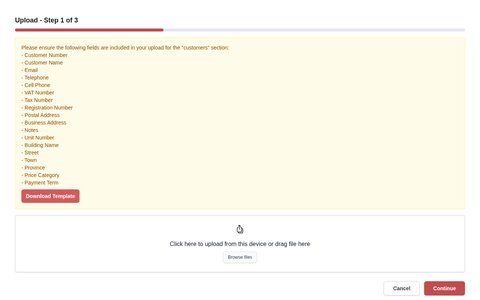
Upload. The page lists the fields you can import. Click on “Download Template” for a spreadsheet with the right columns, fill it in, and upload it with “Browse files” (or drag it onto the page). Click on “Continue”.
Map Data. Choose the worksheet and the header row if needed. Above each column, choose which field it holds. MyFin matches columns with the same names for you. Click on “Continue”.
Import Result. Each row is imported and you can see which rows worked and which failed, and why. Stay on the page until the import is finished.