Title here
Summary here


A Bill of Materials (BOM) is the recipe for one of your products. It lists the components that go into one batch, and how many of each.
A component can be:
A component can itself have a BOM (a sub-assembly). For example, a “Mixed Dozen Box” can be made from donuts that each have their own BOM.
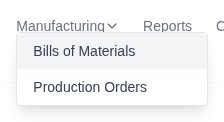
Go to Manufacturing → Bills of Materials:
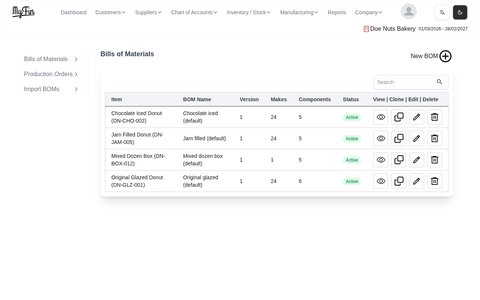
You will see a list of all your BOMs, with the item each one makes, its version, how many it makes and its status. Click on the “New BOM” button:
Fill in the BOM:
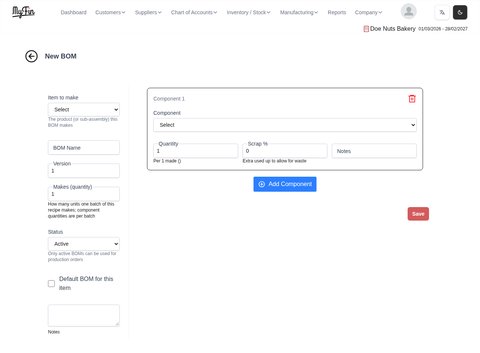
| Field | What it means |
|---|---|
| Item to make | The product (or sub-assembly) this BOM makes. Services can’t be made. |
| BOM Name | A name to recognise the recipe by. |
| Version | Lets you keep more than one recipe for the same item. |
| Makes (quantity) | How many units one batch makes. Component quantities are per batch. |
| Status | Draft, Active or Archived. Only Active BOMs can be used for production orders. |
| Default BOM for this item | The BOM that is picked first when you make this item. |
| Notes | Anything else about the recipe. |
Click “Add Component” for each component and fill in:
Click on the “Save” button. An item can’t contain itself, so MyFin stops you if a component’s own BOM uses the item you are making.
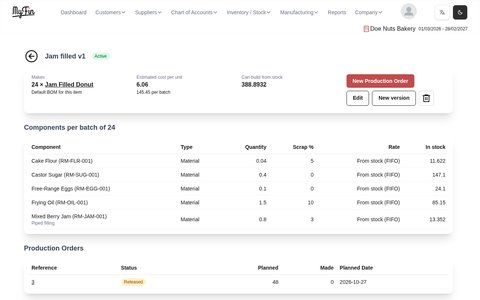
Click on the “View” (eye icon) next to a BOM to see:
You can start a production order straight from here with the “New Production Order” button.
The item’s own page under Inventory → Items also shows which BOMs make it and which BOMs use it.
Click on the “Edit” (pencil icon) next to the BOM, make your changes and click “Save”.
Changes only apply to new production orders. Orders that already exist keep the components they were made with.
To keep the old recipe as it was, open the BOM and click on “New version” instead. This copies the BOM into a new version that you can change, and you can then archive the old one.
The “Clone” button in the list makes a copy of a BOM for you to change and save.
Click on the “Delete” (trash icon) next to the BOM and confirm.
A BOM that production orders have used can’t be deleted. Set its status to Archived instead, so it can no longer be used.
If you have many BOMs, you can import them from a CSV file:
Click on “Import BOMs” in the side menu of the Bills of Materials page.
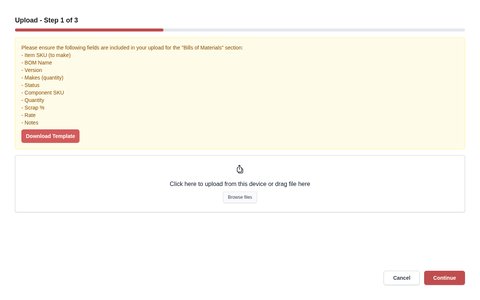
Upload your file. It needs one row per component:
Match each column of your file to a field and click “Continue”. Importing a BOM that already exists (same item and version) replaces its components.