Title here
Summary here


You can give other people, such as a bookkeeper, an accountant or a staff member, their own login to a company.
Each user has permissions per company: for every part of MyFin (customers, invoices, suppliers, inventory, reports and so on) you choose whether they can Create, Read, Update or Delete. Menus and buttons a user has no permission for are hidden.
How many people can be signed in at the same time depends on the number of seats in your license.
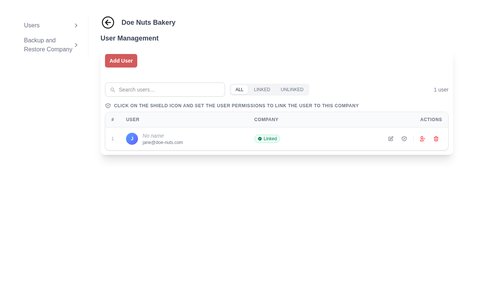
The User Management page lists every user, and whether they are Linked to this company. Use the All, Linked and Unlinked filters and the search box to find someone.
Sending the invite needs the company’s Email Settings. MyFin also shows you the temporary password, so you can give it to the user yourself if email isn’t set up.
Click on the “Set permissions” (shield icon) next to the user, change the permissions and click “Update Permissions”.
A user who is Not linked to this company is linked once you save permissions for them.
The Audit permission lets someone read the company’s Audit Log (Read), and remove years older than 7 years after their archive was downloaded (Delete). Nobody can change the log.
Adding and removing users and changing their permissions is recorded in the audit log.
Next to each user you can: