Title here
Summary here


The dashboard is the first page you see when you open a company. Its widgets give you an overview of what is happening in your company, such as your profit and loss, revenue, expenses and outstanding invoices. You choose which widgets to show and where.
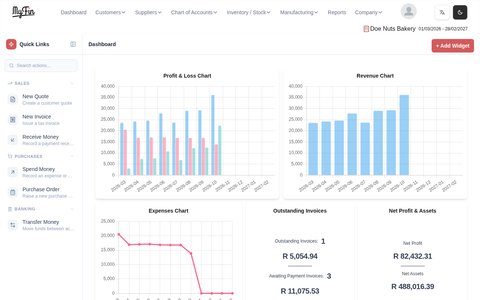
Each person has their own dashboard, so changing yours doesn’t change anyone else’s.
The Quick Links panel on the left has shortcuts for everyday tasks:
| Group | Quick Link | What it does |
|---|---|---|
| Sales | New Quote, New Invoice | Opens a new quote or invoice. |
| Receive Money | Records money you received, such as a cash sale, in a few short steps. | |
| Purchases | Spend Money | Records an expense or payment, and asks whether it was a personal or business purchase. |
| Purchase Order | Opens a new purchase order. | |
| Banking | Transfer Money | Moves money between your accounts, eg from your cheque account to savings. |
Use the search box to find an action, and the button at the top of the panel to hide or show it.
Click on the “Add Widget” button:
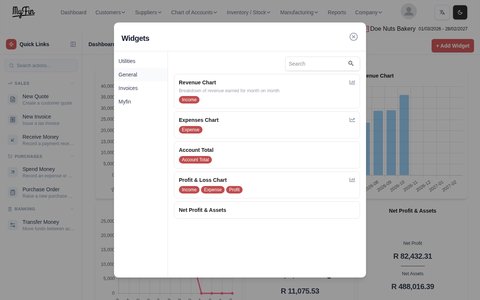
Choose a category on the left, such as General or Invoices, or search, and click on the widget you want:
Once added, click on the “settings” button on the widget to configure the widget:


Click and drag either the “move” button or the widgets title to move and reposition it:

You can also click and drag the bottom right corner of a widget to resize it.