Title here
Summary here


A bulk update changes many item prices or costs in one go, by a percentage. Use it for a yearly price increase, or when a supplier raises their prices.
You choose which prices or costs to change, preview the old and new amounts, and then apply them.
To set prices or costs to exact amounts from a spreadsheet instead, use Import and Bulk Update Costs / Prices on the Items page. See Importing Data.
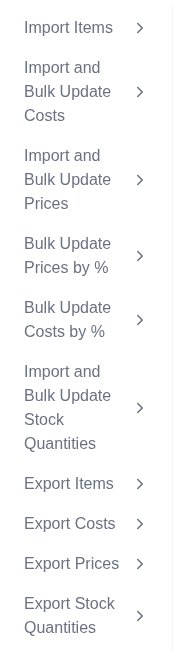
Go to Inventory / Stock → Items and click on “Bulk Update Prices by %” in the side menu.
Choose which prices to change:
Enter the Change %: 10 raises prices by 10%, -5 lowers them by 5%. It must be between -99.99 and 1000.
Choose how to Round to: your company’s currency decimals, or the nearest 0.05, 0.10, 0.50 or 1. New prices are rounded half up.
Click on “Preview”. The table lists every matching price with its current and new price. Greyed rows stay the same after rounding.
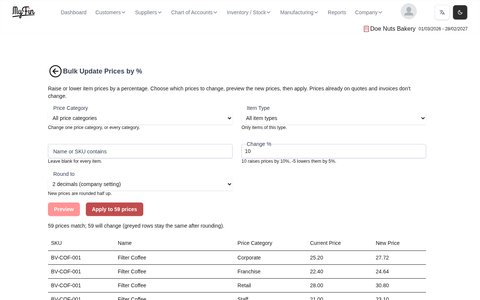
Check the new prices, then click on “Apply to … prices” and confirm.
Changing any of the settings clears the preview, so what is applied is always what you last previewed.
Go to Inventory / Stock → Items and click on “Bulk Update Costs by %” in the side menu.
Choose which costs to change:
Enter the Change %: 10 raises costs by 10%, -5 lowers them by 5%.
Choose how to Round to, the same as for prices. New costs are rounded half up.
Click on “Preview”. The table lists every matching cost with its current and new cost.
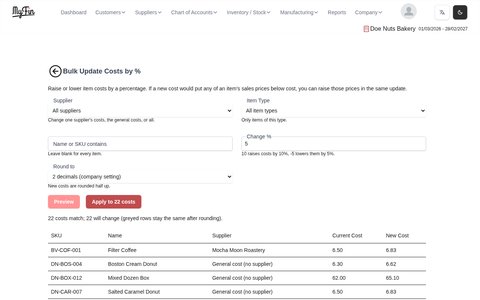
If none of the new costs puts a sales price below cost, click on “Apply to … costs” and confirm.
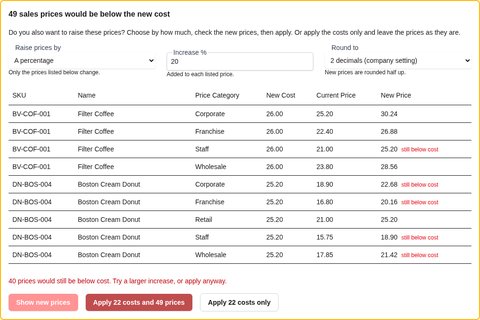
If a new cost would put any of an item’s sales prices below cost, MyFin lists those prices and asks if you want to raise them in the same update: