Title here
Summary here


This is where you create and add your products, material and services that you sell or supply to your customers and clients.
When creating an item, you add it to one of the three item types:
Product
An inventory item is a physical product that you sell to customers.
Material
A material is something you purchase and use to create your products or deliver your services, but you don’t sell it directly to customers in its original form. This could include raw materials for manufacturing (like lumber for furniture), components that become part of a finished product (like screws or fabric), or supplies consumed during service delivery (like cleaning chemicals for a cleaning business).
Service
A service is labor or expertise you provide to customers rather than a physical product. Services include things like consulting hours, repair work, professional fees, training sessions, or maintenance contracts. Unlike inventory items, services aren’t tracked by quantity on hand since they’re delivered through time and effort.
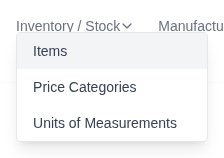
Go to the Items page which is under the “Inventory / Stock” menu:
Click on the “New Item” button:

The new item form will appear for you to fill in the desired information:
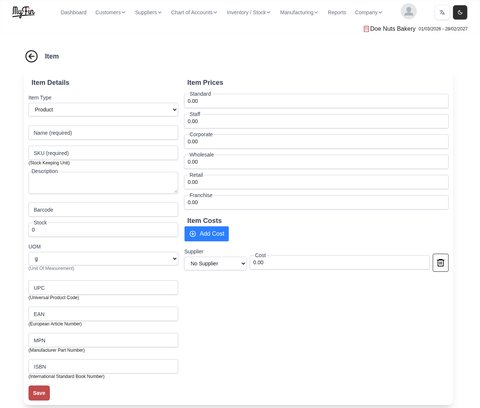
Click on the “Save” button to save the new Item.
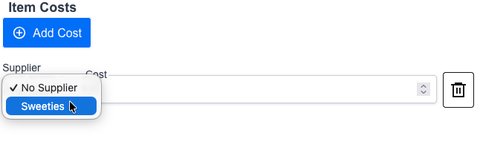
If you have multiple suppliers who you can get the item from, you can add them and the cost in the “Cost” section, When you create a suppliers purchase order or Invoice, the system will use that cost value and also use it in the Inventory tracking system. So when you sell an Item, the cost is correctly reflected in the journal entry system:
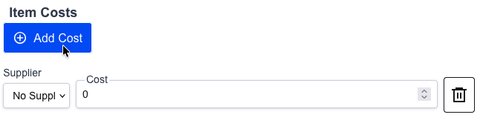
To add a new cost, simply click on the “Add Cost” button:
Select the supplier and set the cost:
Go to the Items page which is under the “Inventory / Stock” menu:
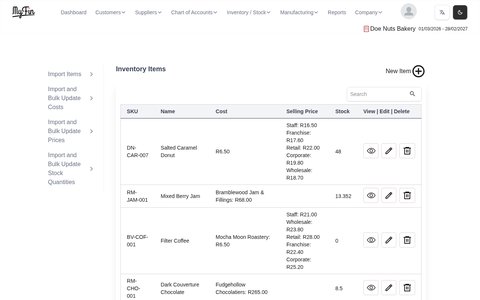
You will see a list of all your Items, with their SKU, cost, selling price in each price category, and stock on hand:
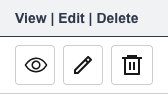
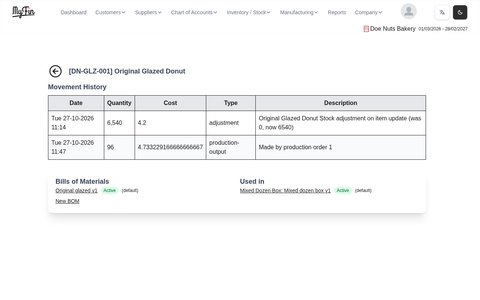
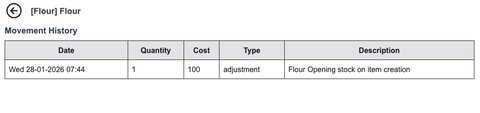
When you click on the “view” (eye icon), you will see the item’s movement history: every sale, purchase, production order and adjustment that changed its stock, with the quantity and cost.
Below it, Bills of Materials shows the bills of materials that make the item (with a “New BOM” link), and Used in shows the ones that use it as a component.
The side menu of the Items page has:
These also update the items you already have, which is handy for a price increase. See Importing Data.
To raise or lower many prices or costs by a percentage without a spreadsheet, use Bulk Update Prices by % and Bulk Update Costs by %. See Bulk Updates.