Title here
Summary here


There are two ways to create backups:
With in the application: The first is by going into the company management section and creating a backup of the Company Data only.
Using an externl application: The second is by backing up the entire database, this will backup all companies data and the users as well.
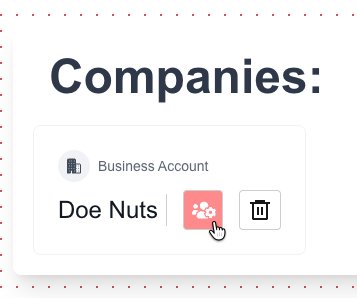
Goto the companies management section:
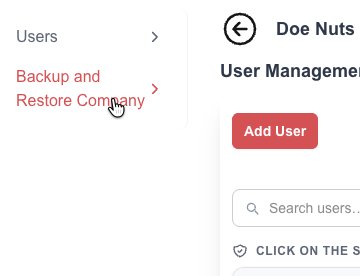
Goto the “Backup and Restore” section:
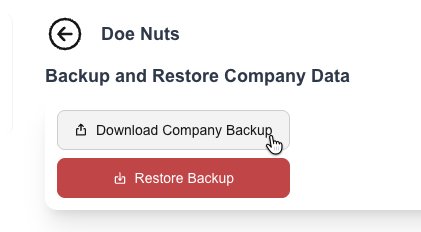
Click on the “Download Company Backup” button to create a backup:
Since Myfin uses a MySql database, you can use any MySql backup application. We have created our own database backup application called “Backup Hub”. It is opensource and can be found on GitHub:
Here is an example of how to add it to our docker-compose.yml file that we created in the Advanced Installation guide:
services:
  myfin:
    image: myfin/subscription:latest
    container_name: myfin
    restart: always
    expose:
      - "${INTERNAL_PORT}"
    depends_on:
      db:
        condition: service_healthy
    env_file:
      - .env
    networks:
      - frontend
      - backend
  db:
    container_name: myfin_db
    image: mysql:latest
    restart: always
    environment:
      MYSQL_DATABASE: ${DATABASE_NAME}
      MYSQL_USER: ${DATABASE_USER}
      MYSQL_PASSWORD: ${DATABASE_PASSWORD}
      MYSQL_ROOT_PASSWORD: ${DATABASE_ROOT_PASSWORD}
      MYSQL_ROOT_HOST: "%"
    volumes:
      - ./db_data:/var/lib/mysql
    networks:
      - backend
    healthcheck:
      test:
        [
          "CMD",
          "mysqladmin",
          "ping",
          "-h",
          "localhost",
          "-u",
          "root",
          "-p${DATABASE_ROOT_PASSWORD}",
        ]
      interval: 5s
      timeout: 5s
      retries: 20
      start_period: 30s
  npm:
    image: jc21/nginx-proxy-manager:latest
    container_name: nginx_proxy_manager
    restart: always
    ports:
      - "80:80"
      - "81:81"
      - "443:443"
    volumes:
      - ./npm/data:/data
      - ./npm/letsencrypt:/etc/letsencrypt
    depends_on:
      - myfin
    networks:
      - frontend
  cloudflared:
    image: cloudflare/cloudflared:latest
    container_name: cloudflared
    restart: always
    command: tunnel run
    environment:
      - TUNNEL_TOKEN=${CLOUDFLARE_TUNNEL_TOKEN}
    depends_on:
      - npm
    networks:
      - frontend
  backup-hub:
    image: myfin/backup-hub:latest
    container_name: backup-hub
    restart: always
    expose:
      - "${BH_INTERNAL_PORT}"
    environment:
      APP_DATABASE_URL: "mysql://${BH_DATABASE_USER}:${BH_DATABASE_PASSWORD}@${BH_DATABASE_HOST}:3306/${BH_DATABASE_NAME}"
      BH_DATABASE_HOST: "${BH_DATABASE_HOST}"
      BH_DATABASE_NAME: "${BH_DATABASE_NAME}"
      BH_DATABASE_USER: "${BH_DATABASE_USER}"
      BH_DATABASE_PASSWORD: "${BH_DATABASE_PASSWORD}"
      BH_DATABASE_ROOT_PASSWORD: "${BH_DATABASE_ROOT_PASSWORD}"
      BACKUP_MASTER_KEY: "${BH_BACKUP_MASTER_KEY}"
      BACKUP_DIR: "/var/backups/backup-hub"
      SMTP_HOST: "${BH_SMTP_HOST}"
      SMTP_PORT: "${BH_SMTP_PORT}"
      SMTP_SECURE: "${BH_SMTP_SECURE}"
      SMTP_USER: "${BH_SMTP_USER}"
      SMTP_PASS: "${BH_SMTP_PASS}"
      SMTP_FROM: "${BH_SMTP_FROM}"
      WEBAUTHN_RP_NAME: "${BH_WEBAUTHN_RP_NAME}"
      WEBAUTHN_RP_ID: "${BH_WEBAUTHN_RP_ID}"
      WEBAUTHN_ORIGIN: "${BH_WEBAUTHN_ORIGIN}"
    volumes:
      - ./Backups/bu-hub:/var/backups/backup-hub
    depends_on:
      backup-hub-db:
        condition: service_healthy
    networks:
      - frontend
      - backup-hub-backend
  backup-hub-db:
    image: mysql:latest
    container_name: backup-hub-db
    restart: always
    environment:
      MYSQL_DATABASE: "${BH_DATABASE_NAME}"
      MYSQL_USER: "${BH_DATABASE_USER}"
      MYSQL_PASSWORD: "${BH_DATABASE_PASSWORD}"
      MYSQL_ROOT_PASSWORD: "${BH_DATABASE_ROOT_PASSWORD}"
    volumes:
      - ./myhub-data/mysql:/var/lib/mysql
    healthcheck:
      test: ["CMD", "mysqladmin", "ping", "-h", "localhost", "-u", "root", "-p${BH_DATABASE_ROOT_PASSWORD}"]
      interval: 5s
      timeout: 5s
      retries: 10
    networks:
      - backup-hub-backend

networks:
  frontend:
    driver: bridge

  backend:
    driver: bridge
    internal: true

  backup-hub-backend:
    driver: bridge
    internal: true
Remember to also append the following into your .env file
BH_DATABASE_ROOT_PASSWORD="replace-with-a-long-random-secret"
BH_DATABASE_NAME="backup_hub"
BH_DATABASE_USER="backup_hub"
BH_DATABASE_PASSWORD="replace-with-a-long-random-secret"
BH_DATABASE_HOST="backup-hub-db"

# --- Master key used to encrypt stored DB credentials and backup passwords at rest ---
# Generate with: openssl rand -hex 32
BH_BACKUP_MASTER_KEY="replace-with-a-long-random-secret"

# --- Where backup files are written on disk ---
BACKUP_DIR="/var/backups/backup-hub"

# --- Outbound email for notifications (task success/failure, logins, user/task changes) ---
# Leave unset to disable notifications entirely (backups still run fine without it).
BH_SMTP_HOST=""
BH_SMTP_PORT="587"
BH_SMTP_SECURE="false"
BH_SMTP_USER=""
BH_SMTP_PASS=""
BH_SMTP_FROM="Backup Hub <backup-hub@yourdomain.com>"

# --- Passkeys (WebAuthn) ---
BH_WEBAUTHN_RP_NAME="Backup Hub"
BH_WEBAUTHN_RP_ID="localhost"
BH_WEBAUTHN_ORIGIN="http://localhost:3000"
From there you can login to the Nginx Proxy Manager and add Backup Hub just like you did in the advanced installation: Advanced Installation Setting up the reverse proxy
Here is an example of the settings I used, remeber to also do the SSL step if you want to:
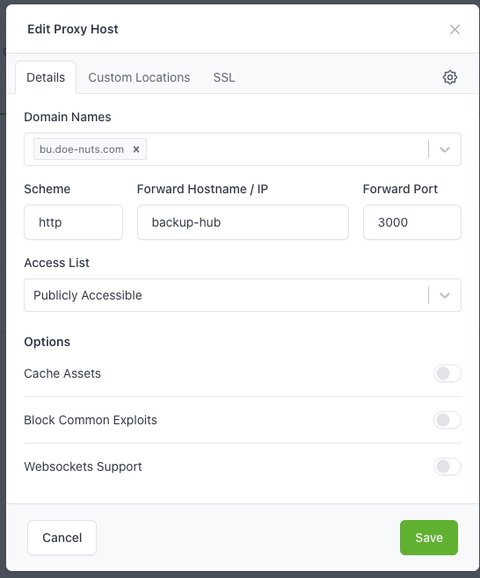
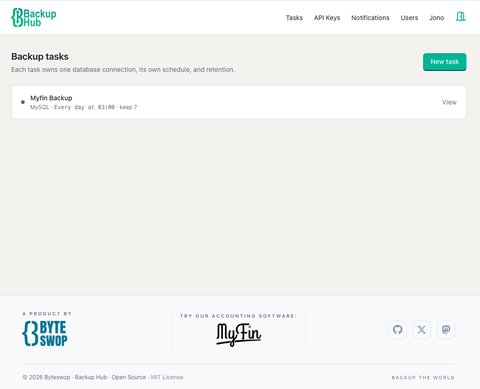
We can now go to (in this example) https://bu.doe-nuts.com to access it and follow the steps to set it up, below is a screen shot of its current version dashboard:
A Quick Notice
We will add a video guide to as soon as we get to working on all the documentations again.