Title here
Summary here


Imagine you have a variety of products to sell, and you want to set different prices for different types of customers based on their relationship with your business.
Here’s how you can organize your pricing strategy:
You create different “price categories” or groups that reflect the type of customer and the level of service they receive.
For instance, you might have a “Retail” category for regular customers where you set prices at a standard markup, let’s say you want to add a 25% profit margin on top of your costs.
Then, you might have a “Clients” category for your loyal or frequent customers, where you offer a more favorable price with a 15% markup instead.
This way, when you’re preparing a quote or an invoice for a new customer who just walked in or is making a one-time purchase, you can refer to the “Retail” category prices, which are higher to cover a broader customer base and marketing costs.
But if you have a customer who has been particularly supportive of your business, perhaps they make frequent purchases or refer others to you, you can offer them special pricing from the “Clients” category, which is more competitive and shows appreciation for their loyalty.
In essence, price categories allow you to manage different pricing structures for different customer segments, ensuring that you’re offering fair prices while also maintaining a profitable business model.
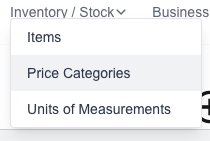
Goto the Price Categories page which is under the “Inventory / Stock” menu:
Click on the “New Category” button:

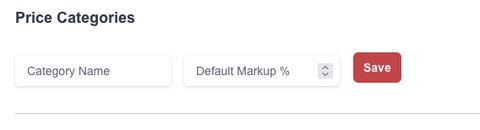
The new category form will appear for you to fill in the desired information:
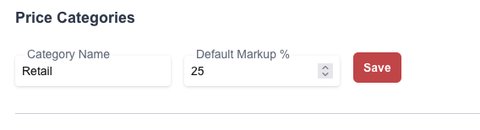
For example we will create a “Retail” category with a default of “25%” markup:
Goto the Price Categories page which is under the “Inventory / Stock” menu:
You will see a list of all your current created Categories.
Simply change the value to your needs and then click on the “Save” button to save them.

If you need to delete a category, click on the “delete” (trash Icon) next to the category.

Click on the “Confirm” button to confirm and delete the category.