Title here
Summary here


A customer receipt is a written acknowledgment issued by a business to a customer confirming that a payment transaction has been completed. Unlike an invoice, which requests payment, a receipt is provided after payment has already been made and serves as proof of purchase. It typically includes information such as the date and time of the transaction, the business name and location, an itemized list of purchased goods or services, the payment method used (cash, credit card, etc.), the amount paid, and a unique receipt or transaction number. Receipts are important for both businesses and customers: businesses use them for record-keeping and accounting purposes, while customers need them for personal financial tracking, warranty claims, product returns or exchanges, expense reimbursement, and tax documentation.
Please Note?
A receipt can not be edited or deleted.
To make a correction, either:
Create a credit note if there was an overpayment
Or another receipt if there was under payment.
There are two methods that can be used to create a receipt:
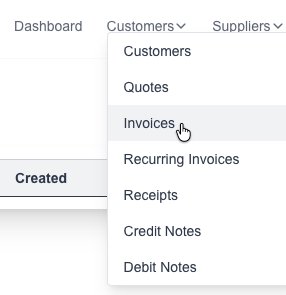
Goto the Invoices page which is under the “Customers” menu:
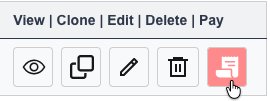
Find the desired Invoice and click on the “Pay” button next to it, this will open up the receipt page:
The details will be auto filled in, but you can change as needed.
Add a new payment and fill in the payment details by clicking on the “Add Payment” button
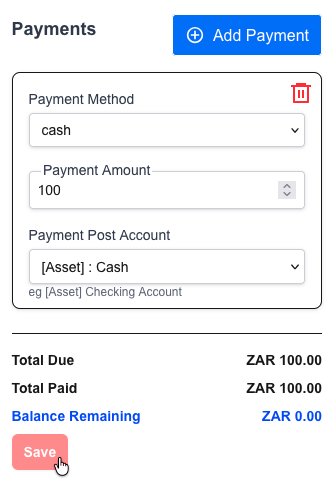
Click on the “Save” button to save the new Receipt. A PDF file will be generated and presented to you.
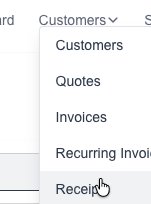
Goto the Receipts page which is under the “Customers” menu:
Click on the “New Receipt” button:

Goto the Receipts page which is under the “Customers” menu:
You will see a list of all your created receipts:
Click on the view button: