Title here
Summary here


You can use MyFin for free with the Community Edition: 1 user and 1 company, with no sign-up. For more users or companies, get a license from MyFin Hub, where you can also manage your subscriptions, orders and invoices, and upload it at any time.
Your license decides:
A license is for one running copy of MyFin.
The first time you open MyFin after installing it, it asks how you want to start:
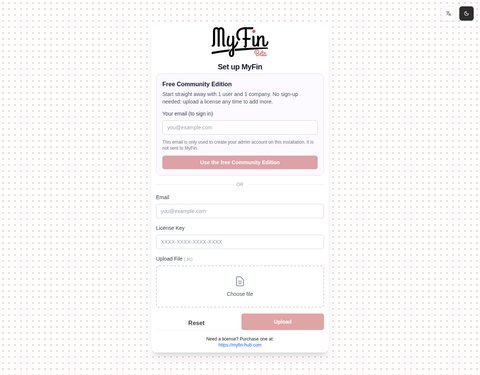
You can now sign in. You are the administrator of this installation.
Go to myfin-hub.com and create an account (or sign in).
Choose a plan under Pricing. Free plans have a “Get for Free” button and trials a “Start Free Trial” button.
On the checkout page, check the Order Summary and choose how to pay:
For a subscription you also choose the Billing method: Auto-debit charges you automatically each period until you cancel, and Manual sends you an invoice to pay each time.
Once your payment has gone through, open Your Dashboard → Licenses and click on your license. It shows your License Key, and you can click on “Download License File” to get the .lic file.
If you already have a license, use the bottom part of the first screen instead of the Community Edition:
XXXX-XXXX-XXXX-XXXX)..lic file you downloaded.You can now sign in. Once activated, the license works offline.
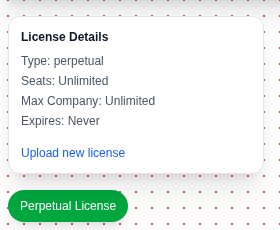
The badge in the bottom left corner of the Companies page shows your license type. Click on it to see the details:
| Badge | Meaning |
|---|---|
| Perpetual License / Community Edition | Doesn’t expire. |
| Active / Trial with the time left | A subscription or trial and how long it still runs. |
| Expires Soon | Renew it now. |
| Expired License | MyFin runs in read-only mode: you can see and print everything, but can’t add or change anything until you upload a new license, or switch to the free Community Edition. |
When you renew, upgrade or buy more seats on MyFin Hub, download the new license file and upload it:
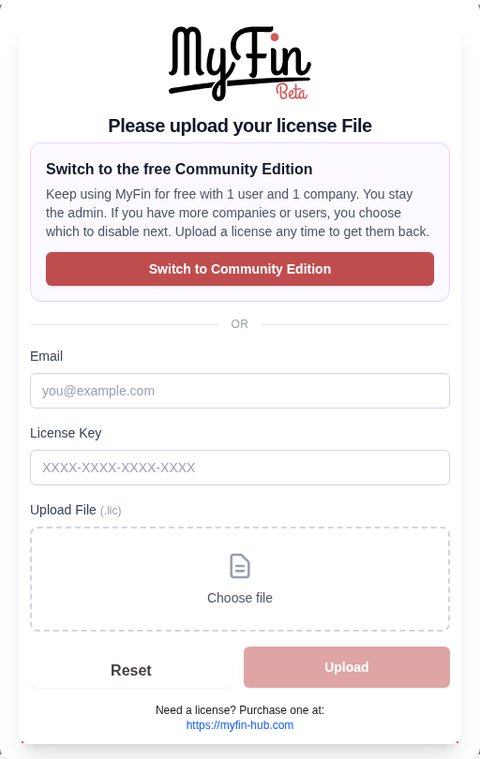
If you no longer need your paid license, or it has expired, you can carry on with the free Community Edition. Only the person who holds the license can do this, and they stay the administrator.
The Community Edition allows 1 company and 1 user. If you have more, see Over Your License’s Limits below.
When you move to a license that allows fewer companies or users, such as the Community Edition, MyFin asks the license holder to suspend what is over the limit. Suspending deletes nothing: a suspended company keeps all its documents and entries, and a suspended user keeps their account. You can re-enable them as soon as your license allows.
The Companies page lists your companies. Click on “Suspend” next to each one you don’t need for now, until you are within your license’s limit.
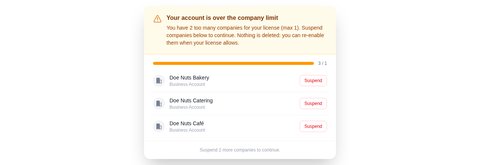
Then, on the Community Edition, it lists the other users. Click on “Suspend” next to each one. You are never on the list.

Until you’re done, other users who sign in see a message asking them to wait for their administrator. It doesn’t mention the license.
Suspended companies and users are listed under Suspended, under your companies. Only the license holder sees this list.
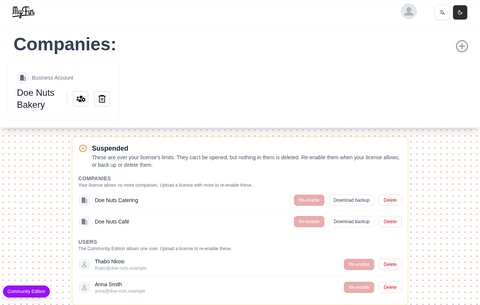
A suspended company can’t be opened by anyone, and nothing runs in it: no recurring invoices, scheduled depreciation or report emails. The license holder can still:
A suspended user can’t sign in. They see this message:
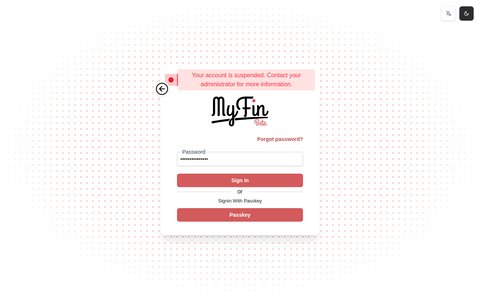
The license holder can click on “Delete”, and again to confirm, to delete the user for good.
“Re-enable” is greyed out while your license has no room for them.
Suspending, re-enabling and deleting are all recorded in the Audit Log.
After you upload a license that allows more, open the Companies page and click on “Re-enable” next to each company and user you want back. Companies can be re-enabled up to your license’s number of companies. A paid license limits how many people are signed in at once (seats), not the number of users, so all users can be re-enabled.
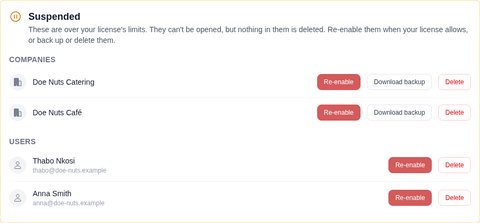
They are back exactly as they were: the company with all its documents, and the user with their own password and permissions.