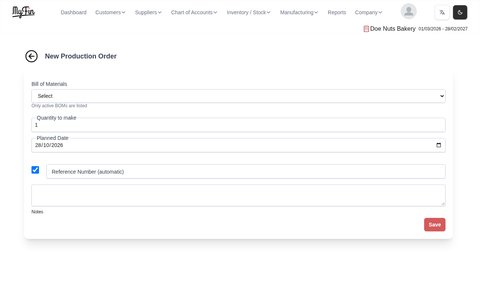
A Production Order makes a quantity of a product using one of its Bills of Materials.
MyFin keeps track of the stock and the money for you:
Releasing the order takes the components out of stock and moves their cost into your Work in Progress account. Labour and overhead services on the BOM are added at the same time.
Completing the order books the finished products into stock. Their cost is what actually went into work in progress, so your stock is valued at what it cost to make.
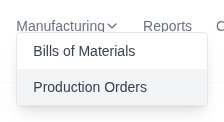
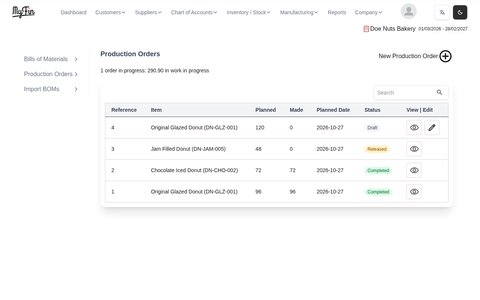
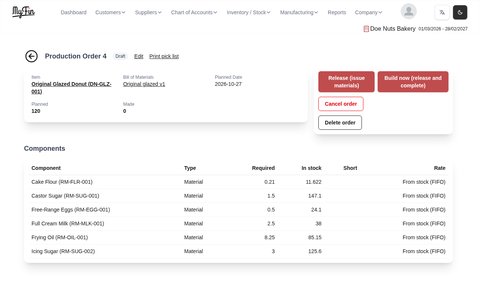
Click on the “View” (eye icon) next to the order. The order page shows each component, how much is required, how much is in stock, and any shortage. Once the order is released it also shows the costs: materials, labour and overhead, what has been booked to finished goods and what is still in work in progress.
A production order
From here you can:
Release (issue materials): takes the components out of stock into work in progress. You can only release an order when there is enough stock of every component.
Book in finished goods: enter the quantity made and the date.
A part completion books in some of the units. They take their share of the cost and the order stays open.
A final completion closes the order, even if fewer were made than planned. All remaining work-in-progress cost goes onto these units.
Build now (release and complete): does both steps at once, for when the products are made straight away.
Edit: change a draft order.
Print pick list: a printable list of the components to collect from the store, with their SKU, location and quantity, and lines for who picked and checked them.
When components are short, the order page shows how much of each is missing. Click on “Order shortages” to create a Purchase Order for the missing components, already filled in.
If a missing component has its own BOM, you can make it with another production order instead.
Cancel order: a draft order is simply cancelled. For a released order, its materials go back into stock and the work-in-progress entries are reversed. Any finished goods booked in so far come back out of stock.
Reverse order: undoes a completed order. The finished goods come out of stock, the materials go back in, and the journal entries are reversed. This only works if none of the finished goods have been sold or used. Otherwise adjust the stock instead.