Title here
Summary here


The audit log records everything people do in a company: every document, customer, supplier, item, account and setting they create, change or delete, and who did it, when, and from where (the IP address and browser).
Use it to see who changed an invoice, when a price went up, or who gave someone new permissions. Your auditor may also ask for it.
You need the Audit permission (Read) in the company. Nobody has it until an administrator gives it to them under User Management, so tick it for yourself and anyone else who should see the log.
Whoever creates a new company gets every permission in it, including Audit.
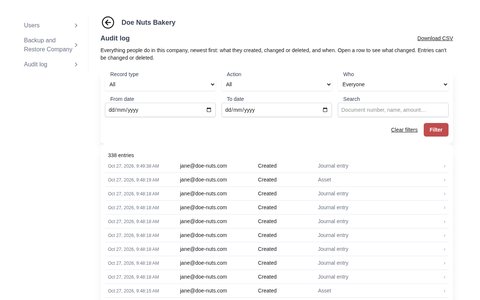
The newest entries are at the top. Click on an entry to open it and see what changed. Click on the record’s name to open it, for example the invoice.
| Customers | Invoices, recurring invoices, quotes, receipts, credit notes and debit notes: created, changed, deleted and emailed. Customers. |
| Suppliers | Purchase orders, supplier invoices, payments and debit notes. Suppliers. |
| Inventory | Items, units of measurement and price categories, bulk price and cost updates, and imports. |
| Manufacturing | Bills of materials, and production orders: released, completed, cancelled and reversed. |
| Chart of Accounts | Accounts, journal entries you enter yourself (including Quick Links), bank imports, and closing and reopening the books. |
| Fixed assets | Assets, asset categories, impairments, disposals, and depreciation runs and their reversal. |
| Company | Company details and settings, tax types, currencies, billing terms, financial years, document numbers, default accounts, owners and email settings. |
| Users | People added to or removed from the company, permission changes, and 2FA and passkey changes made for them. |
| Data | Imports, CSV exports, backup downloads and restores. |
Journal entries that a document posts (an invoice’s or a receipt’s) are not listed one by one: the document’s own entry covers them.
Use the filters above the log, then click on “Filter”:
Click on “Clear filters” to see everything again. The address in your browser keeps the filters, so you can bookmark a filtered view or send it to someone who also has the Audit permission.
Invoices, quotes, receipts, credit and debit notes, purchase orders, supplier documents, customers, suppliers, items, bills of materials, production orders and assets show a History section at the bottom of their page, for people with the Audit permission. Click on it to see who created and changed that record.

Click on “Download CSV” at the top of the audit log. The file holds every entry that matches the filters you chose, with the changes written out on one line each, so you can open it in a spreadsheet or send it to your auditor.
The audit log keeps every entry for at least 7 years, which is about as long as accounting records usually have to be kept. After that, older years can be archived to save space. Nothing is ever removed automatically.
A calendar year can be archived once all of it is older than 7 years: in November 2026 that is 2018 and earlier; 2019 follows on 1 January 2027. When there is such a year, the audit log shows an Entries older than 7 years box at the top:
A year can only be removed after a download that held all of its entries. Downloading an archive and removing a year are both recorded in the audit log.
Sign-ins, failed sign-in attempts, sign-outs and security changes to your own account are not part of a company’s audit log. You see them under Recent account activity on your account’s Security page. See Your Account.