Title here
Summary here


Every account has a register of its entries (journal entries), like a bank statement: the date, reference, description, the account on the other side of the transaction, and the running balance.
You can also capture transactions here directly, for example bank charges, a loan repayment or a transfer between accounts.
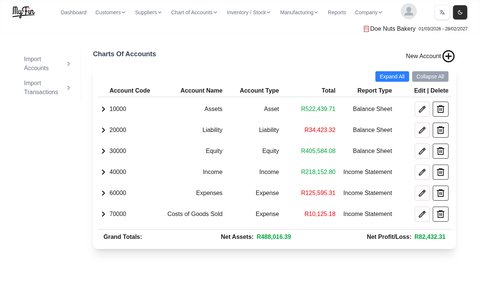
Go to Chart of Accounts → Chart of Accounts.
Click on the arrow next to a main account (or “Expand All”) and click on the account you want:
The account’s entries open, grouped by day:
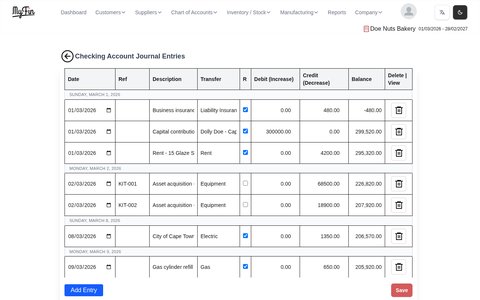
| Column | What it means |
|---|---|
| Date, Ref and Description | When, the reference and what the transaction was. |
| Transfer | The account on the other side of the transaction. |
| R | Reconciled: tick it once you have matched the entry to your bank statement. |
| Debit (Increase) / Credit (Decrease) | The amount, and whether it increases or decreases this account. |
| Balance | The account’s running balance. |
MyFin posts both sides for you: the same amount appears in the transfer account’s register on the opposite side.
Change the row and click on the “Save” button, or click on the “Delete” (trash icon) next to it.
Entries that were created by a document, such as an invoice, receipt or supplier payment, can’t be edited or deleted here. Change or delete the document instead.
The dashboard’s Quick Links panel also has short guided forms for common transactions: Receive Money, Spend Money and Transfer Money (move funds between your accounts). See Dashboard.