Title here
Summary here


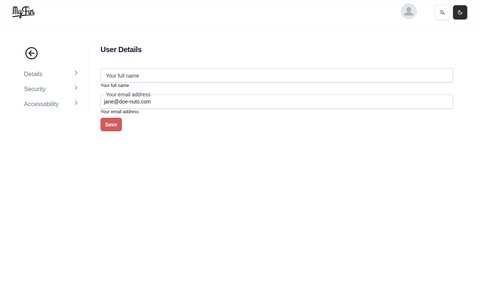
Move your mouse over your picture in the top right corner and click on “My Preferences”. The side menu has Details, Security and Accessability, and for the user who holds the license also Updates (see Knowing When An Update Is Available).
Change your full name or email address and click on “Save”.
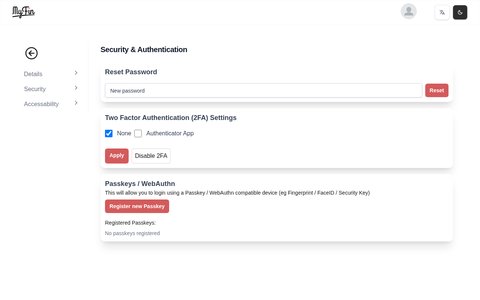
Type a new password under Reset Password and click on “Reset”.
Two-factor authentication asks for a code from an authenticator app (such as Google Authenticator, Microsoft Authenticator or 1Password) as well as your password when you sign in. We strongly recommend it, as MyFin holds your financial records.
If email is set up, you can choose Email instead to get the code by email.
To turn it off, click on “Disable 2FA” and confirm.
A passkey lets you sign in with your fingerprint, face recognition or a security key instead of typing your password.
Click on “Register new Passkey” and follow your browser’s instructions. Your passkeys are listed under Registered Passkeys.
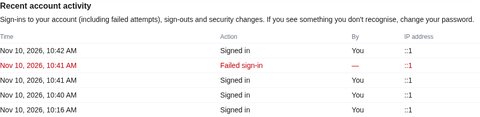
The bottom of the Security page lists the last 20 events on your account: sign-ins and how you signed in, failed sign-in attempts, sign-outs, and password, 2FA and passkey changes, with the IP address each came from. Failed attempts are shown in red.
If you see a sign-in or change you don’t recognise, change your password and turn on two-factor authentication.
Shows how to install MyFin as an app on your computer or phone through your browser.
Click on “Manage Sessions” in the user menu to see everyone who is signed in, on which device and browser.
Your license’s seats are shared across everyone signed in. Click on “Log out” next to a session to sign it out and free its seat straight away.
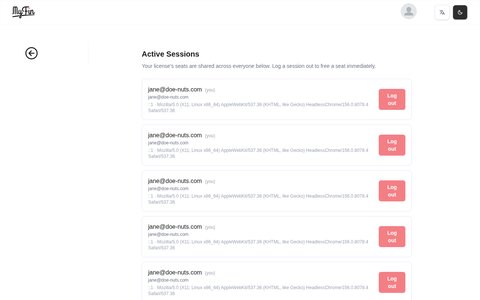
“Manage Sessions” is only shown to the user who holds the license.