Title here
Summary here


MyFin sends email through your own email (SMTP) server, so every email comes from your address and is kept on your servers.
Email is used to send quotes, invoices, credit notes, receipts and purchase orders to your customers and suppliers, and for user invites and password resets.
Go to Company → Settings and click on “Email Settings” in the side menu:
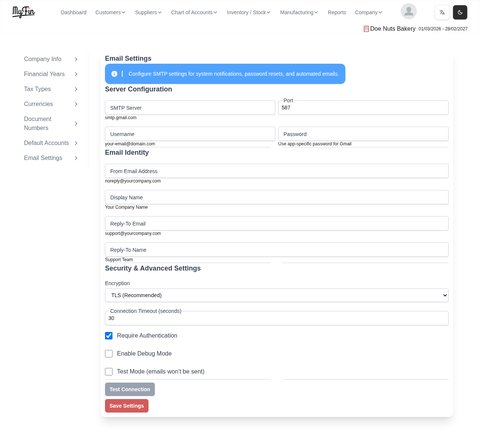
Fill in your email provider’s details:
| Field | What it means |
|---|---|
| SMTP Server and Port | Your provider’s outgoing mail server, eg smtp.gmail.com and port 587. |
| Username and Password | The login for the mailbox. For Gmail and Microsoft 365, use an app password rather than your normal password. |
| From Email Address and Display Name | Who the email comes from, eg accounts@yourcompany.com and Your Company Name. |
| Reply-To Email and Reply-To Name | Where replies go, if not to the From address. |
| Encryption | TLS (Recommended) for port 587. Your provider’s help pages list the right setting. |
| Connection Timeout | How long to wait for the server, in seconds. |
| Require Authentication | Leave ticked unless your server accepts mail without a login. |
| Enable Debug Mode | Logs more detail, to help find a problem. |
| Test Mode | Emails aren’t actually sent. Useful while you are trying things out. |
Click on “Test Connection” to check the settings, then click on “Save Settings”.
Open the document, for example an invoice, quote, credit note, receipt or purchase order, and click on the “Email” button to email it to the customer or supplier.
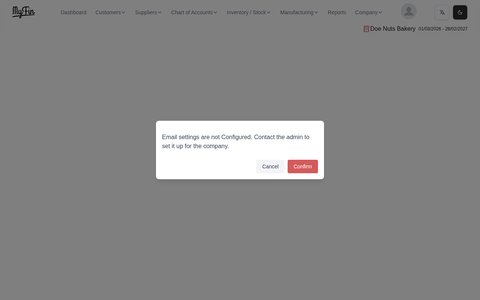
If email hasn’t been set up yet, MyFin tells you so instead: